Get Premium
Dark mode theme is available exclusively for premium users. Learn more about the benefits of subscribing.
No fees, cancel anytime.

 Dark Mode Ad-Free Browsing Unlimited Content
 Ad-Free Browsing Unlimited Content Dark Mode
Join 1.2 million Panda readers who get the best art, memes, and fun stories every week!
We’ve come a long way with technology. These days, you can stream almost any song in seconds, get food or groceries delivered without talking to a single person, and even use AI to help you learn a new language. It’s kind of overwhelming when you stop to think about it.
But even with all these digital conveniences, many of us still aren’t using them to their full potential. That’s why Redditors decided to share some of their favorite internet hacks that make everyday life a little easier. From shortcuts that instantly reopen that tab you accidentally closed to underrated websites you’ll want to bookmark, check them out below—they might just come in handy.
This post may include affiliate links.
 There's a Chrome extension that turns all pictures of Trump into kittens.
it's called Make America Kittens Again and it has made my viewing experience a little less insufferable.

This is the most important and useful thing I heave learned so far this year.
 I always complete my emails and look over them before I put the destination email addresses in. Prevents me from accidentally sending something I don’t want to send.

Good idea. Also, never send an email when you're angry with someone.
 If you put swear words in your search, you won't get the AI generated answer.
 Delete your Facebook, Instagram, Twitter, etc. it will help your mental health and save you time. Also, unsub from any political subreddit.
So pleased that I don't have these. Mind you. Facebook occasionally reminds me that I have 'forgotten' to complete my registration by failing to accept the Terms and Conditions. I didn't forget. I found them unacceptable!
 Tired of looking up photos and getting AI images? Add “before:2022” to the end of your Google searches.
Similarly you can specify exact dates “before:YYYY-MM-DD” or search for anything “after:YYYY-MM-DD” as well.

Good to know... Thank you. I often have to put images in assignments for students to clarify and this helps.
 Before submitting a lot of text in an online form, copy it with CTRL/CMD+C in case your login timed out or the page crashes when you submit. At least you won’t have to type it again.
This is a great idea. The number of times I've written a good question, complaint, etc. and wiped it out by brushing against the wrong key on my laptop.
 I use -ai at the end of a Google search to get rid of that stupid ai overview thing.
 Block people more liberally. If someone's saying things that make me uncomfortable or upset? Boom, blocked. It's so much better than getting into arguments or having my mood lowered when I'm trying to do something fun..

This. There are opinions I don't need to listen to. Ukraine started the war? Block. Tate is sooo innocent? Block. Their only argument is calling the other a 'r****d'? Block. Doesn't mean living in a bubble - you just filter out the nasties and trolls. And they aren't providing anything of worth anyway.
 Use https://cooked.wiki/ to view just recipes -- skip the long, meandering essay that leads up to what you really want. It's like a super-power.
2donuts4elephants:
In a similar vein to save time, justwatch.com has a comprehensive list of where you can find a movie or TV show on streaming services without having to look up each one individually. It's immensely helpful.
 Ctrl+Shift+t
Reopens the last browser tab that was closed. Really handy when you accidentally close the wrong tab.
poop_pants_pee:
Ctrl+shift+K
Duplicates whatever tab you have open. I use it when I don't want to lose my place but want to search elsewhere on the page.
 Don't engage with a******s, just block and move on, it'll save you a load of stress.
 Regarding troubleshooting when it comes to software based issues, at the end of your query, type [solved] and you'll get a bunch of topics with proven fixes.
For eg: resident evil 3 pc frame drops [solved].
 Get a good password manager and use it as a browser extension. In itself a great way to create unique and strong passwords.
A really good benefit however, is that if you ever accidentally click on a phishing link to a service you use, the password manager won't auto fill your credentials. This should immediately indicate to you that you are not are the site you thought you were.
 If you need to see a saved password, but the site doesn't have an "eye" option to reveal it
highlight the dots that are your password, right click, select "inspect element" or similar, go to the "type" field and change the "password" word to anything and press enter, your password will be revealed.
if a password is saved in your browser you can see them all in the settings by going into passwords. Saving passwords in a browser is extremely unsafe, and they aren't hidden in any way or encrypted. Use a password manager
 I pay for an email and domain service with the catchall redirected to my own email address - when I sign up for a service I set my email for that service to be [servicename]@mydomain.com, this way when I see spam coming in I know which b*****d service sold my details, I then never use them again.
You can do something similar with gmail and other providers by using + in your address. https://www.streak.com/post/gmail-plus-addressing-trick OR just use iCloud emails.
 On YouTube you can skip almost any ad by clicking the info button and hitting “stop seeing this ad” and it’ll skip the ad even if it doesn’t have a skip button. Doesn’t work for official ads tho like Walmart or Pepsi
Pale_Angry_Dot:
If you have a VPN there's certain countries in which YouTube has no ads, like Monaco or I think Albania.
 * Get a great music recommendation each day and don't rely on your streaming services algorithm loop: https://1001albumsgenerator.com
* Don't support Google -> Stop using Chrome. Try **Firefox** with the uBlock (ad-blocker) extension, it's awesome!
* Don't support Google -> Use https://duckduckgo.com/ or try another one, they're in general pretty good these days.
 Learn to paste stuff using ctrl+shift+v
It strips away any bold, italics, or colors and some other formatting options.
Besides being usefull removing c**p from the clipboard and making your life easier when pasting for example data to excel it might be helpfull when pasting data that came from an a.i. that could be detected and get you in trouble.

I use this about 50 times a day at least. Ctrl-C, Ctrl-X, and Ctrl-V are the most useful ones for me.
 F12 & right click the refresh button > do hard refresh & clear cache.
I worked briefly in IT and this solved most problems.
 Windows key + V
It opens up a clipboard of all your recently copied items including images. Really useful.

This is a true game changer for me. How many times have we accidentally copied when we wanted to paste?
 Not really a "hack" but still something I do every day. When on a typical online shopping site, if there is a dropdown to change the number of items displayed per page, take a look at the URL when you click on one of the options. You'll usually notice part of the URL has changed to reflect the number of items you've chosen. Simply change that number to anything you want to display more items than the dropdown allows you to.
Also a great way to skip a large number of search result pages. Change "?page=2" to "?page=57" and you save a lot of clicking page numbers and waiting for page loads.
 In chats with customer service bots, I just write 'human' or 'speak to agent' a few times and it connects me to a human most of the time.
 Wordhippo.com is my favorite site for anything word and sentence related. Can’t find a word? Wordhippo. Need a rhyme? Wordhippo. Anything you need really.
 Use temp mail services (like temp-mail.org) when you need to sign up for something sketchy. Keeps your real inbox clean.
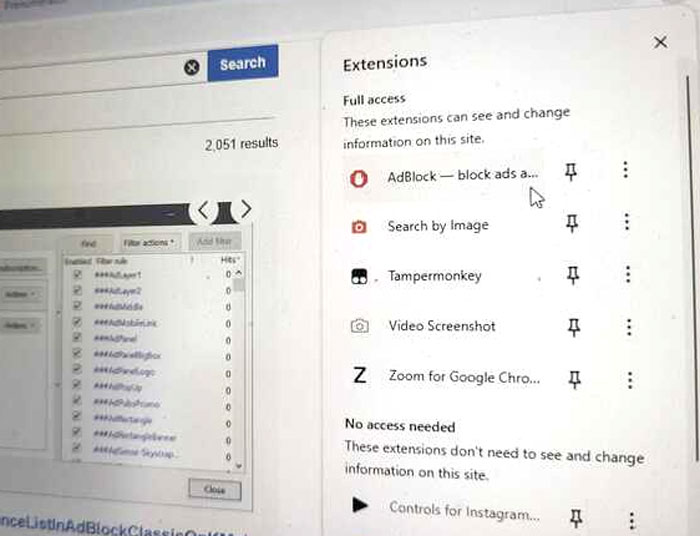 No-one should go near the internet without adblock.
If you can't have adblock on your device you can use something like NextDNS to do adblocking on your (ISP's) router and it will work for all devices on your network. This also makes it a great option for less tech savvy family and friends.
You can also set it up as the default DNS for your phone so you have adblocking in all apps without little to no extra battery or cpu usage.
Important note: If you use NextDNS, go to Settings > Logs and set the storage location to Switzerland.
The standard is in the US which is a big ick.
 Proper search techniques.
Use "blue car" quote marks to search for exact matches for the words blue car side by side on the page if you just use blue car it would find pages with the word blue and/or the word car anywhere on the page. It could just bring something with blue, without car.
Use - to remove words. ie.
"Blue car" -Tesla and will bring up every page with the words blue car except any that contain Tesla.
Using + will look for pages that contain ALL words included +blue +car will show pages with both blue AND car on the same page.
If you are trying to search for a thing ONLY on one particular website, you add
Site:sitename.com and it will search ONLY that website. If you drop it down to site:.gov it will ONLY search US government websites.
Site:reddit.com will search only reddit for answers.
Breaking it down by country or top level domain, using site:.nz will search ALL New Zealand websites.
If you use site:.co.nz it will search all commercial sites in New Zealand.
There are also search tools so you can filter the results. Ie search by time to find answer to your query. Ie search for the last hour day, weeks or custom.
I member this thing in the internet in August 2018.
Use search tools to search the internet for answers from August 2018 search tools too middle of the results window.
 If you run out of "free articles" or anything behind a soft paywall that doesn't require making an account, you can just go into your browser history, select the site, select "forget this site", and you're good to go.
 The ultimate typing hacks:
Ctrl + backspace to delete an entire word at a time, rather than spamming backspace to delete one letter at a time. You can also do the same with the arrow keys to go back a forward a whole word, and hold shift at the same time to highlight without using the mouse!
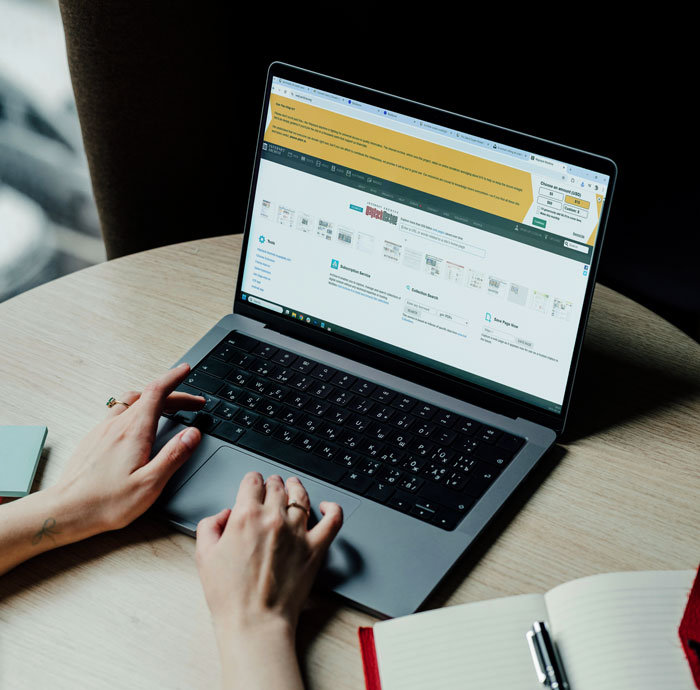 **Web Archive Wayback Machine** - Access deleted posts or old site versions by pasting URLs.
 IDK how widely known this is, but if you klick on a link with the mouse wheel it opens that link in a new tab instead the current one.
 I use brave browser for websites that have a lot of pop ups and ads. Some sites aren't even readable with all the ads.
Brave browser turns it into a clean site.
To watch Youtube without ads: put a - between the t and u in youtube: like this yout-ube. For example: https://www.yout-ube.com/watch?v=pTzF84a9j_I. Sometimes you need to refresh the page to have it work.
 I started self hosting things: websites, databases, media server, torrents etc
Dropped my cloud costs by a lot, all runs in a little 1000 dollar mini computer with 64gb ram sitting on top of my fridge.
Marito1256:
My server is literally a thrice handed down old budget gaming PC, gtx1050 with 16gb of ram and 2 shucked 10TB drives I bought on western digital sales. It's a beast and I got it for free from a friend. Self hosting is super fun and useful. Def recommend it to anyone willing to maintain it, and not everyone needs $1000 setup or 64gb.
 **Ctrl + F is your best friend.** When you're doom-scrolling through a 300-page PDF or an endless Reddit thread, just hit Ctrl + F (or Command + F on Mac) and type what you’re looking for. It's like having a personal assistant in the wild west of the internet.
Pro tip: If you're on a webpage and Ctrl + F isn’t cutting it (thanks to lazy loading or pop-ups), slap 'site:[website] [keyword]' into Google. It’s like Ctrl + F, but on steroids.

I use it on BP to go back to the last article I read on the home page and scroll up for the next latest one.
The Ctrl+I shortcut in Firefox.
It opens a pop-up that has a Media Tab that makes it easy to download lots of videos, audio files, and pictures when a website is making it difficult.
For example, if you are listening to a podcast on a site and there is no download button. Just Ctrl+I, click on the mp3 file in the Media Tab, and click Save As.
It doesn't always work (some big sites like Youtube and Spotify put their media files behind an extra "blob" layer) but it works more often than not.
 For a while, I used a Chrome extension called UnPinterested. It automatically adds "-Pinterest" to any searches on Google's image search.
This was extremely necessary in the last 5-6 years or so because I might be trying to search for a picture for a quick meme/joke response to something, but all the results were from that website. Meaning trying to get just the image from the search page got you a tiny thumbnail, but opening the link either hit you with an account-wall or a massive wall of pictures you had to search through with no guarantee the picture in question was even accessible or bigger than the thumbnail. It was an absolute plague on search results.
This would be good for me at work, because the school internet won't load Pinterest anyway
 ChatGPT can find coupon codes to almost any website. Saved $150 on a shinola watch this way.
 Using https://cofyt.app to explore long YouTube videos and podcasts. Saves you time and does not make stuff up like ChatGPT. It stays grounded in the transcript and if the video is complicated in any way you can ask for explanations or help in different levels of understanding to help you understand difficult concepts.
Use ‘site:’ in Google searches to find stuff only on a specific website. Like ‘site:reddit.com budget travel tips’—makes Google 100x more useful.
I feel like read receipts are the root of all evil in this world. Creates so many problems. Who asked for that, really? I would prefer no-one sees when I've read something.
Messenger lets me turn off read receipts from my end for everyone at Settings -> Privacy and Safety -> Read receipts.

It also lets spammers know they got a live target. Turn them off and learn patience.
Soulseek is still around and excellent for downloading full mp3 albums reliably, properly encoded and tagged. Torrents have gone to s**t.
Soulseek is good. Nicotine+, which was originally a Linux-developed program that worked off SS' servers, is better. (There's now SS for Linux and Nic+ for Windows, so Nic+ is now clearly superior on multiple platforms!)
 Win+D takes you to the desktop in case someone comes unannounced and your on the "wrong" website.

or keep something else open, hit Alt+Tab, it switches between whatever you've got open.
I turn off image loading in my browser when I need to focus on reading the text. Pages load really fast and I don't get ads.
Yes there is reading mode which works most of the time, and yes ad blockers work, but sometimes I need the site to think I'm not using an ad blocker and sometimes reading mode doesn't render the content very well.
 The currency in the net is your attention and time, so manage where you spend it.
There are good addons for firefox like leechblock, where you can filter sites out for yourself or set a maximum amount of time you are allowed to spend (so like only 10 minutes doomscolling per day), ublock (filters ads, even on youtube).
Windows and android has a black and white/greyscale mode under acessibility settings (in windows you can activqte it via key shortcut).
Having a boring looking Internet without stimulating colour helps me focus.
You can filter ads from smart devices via pihole (so no ads on your washing machine).
Myemail[at]gmail.com is the same as myemail[at]googlemail.com
Most sites don't consider them identical, for mutliple registrations/accounts and such. Everything goes to your inbox tho. You can also add a dot anywhere you want, so [my.email](http://my.email) is the same as mye.mail is the same as [myema.il](http://myema.il).
There's a bunch of keyboard shortcuts on YouTube. For example:
K = play/pause
J = 10 sec back
L = 10 sec forward
< = frame back
> = frame forward
And there's a bunch more too. They're not secret, but they're not exactly common knowledge.

 If you're trying to get a PNG, you'll get more reliable results if you select the transparent option under tools>colours. Less fake PNG's!
Organizing my bookmarks in a way that makes it super easy to access my most used sites.

I've (mostly) given up on bookmarks & only use a Chrome extension called Tabs Outliner. It's a godsend, especially for organizing things you are doing research about but don't want to save forever. It works as a bookmark manager too. You can open/close groups of tabs, add notes, separate sections (in the same window or not), copy the whole thing to keep a backup. Indispensable! Now that I've sung their praises, here's a caveat: It doesn't go w/the Chrome feature to reopen previous tabs after a crash. They will open as new links in new windows. Your old organization remains, even has a little green tag saying "crashed" & a date, but you'll have to reopen them from there & ignore (or close) the tabs Chrome reopened.
I type URLs directly into the search bar.
I thought that was obvious but on 99% of tech support calls I take the user will type the company name into the omnibar, go to google, read all the results, get confused and ask "which one do I click?"
It always takes me a second to realise they didn't go straight to amazon.co.uk - they googled it instead.

But you know, it's actually quicker to just type amazon, hit enter, then select the link, than it is to type the whole URL Lin the address bar, so... (Anyway, Amazon is different, so I actually have shortcuts for each of the four national sites that I may want to use at any given time.)
Fire foxes containers are amazing to keep everything separate whilst still being one browser.
You can make a Discord Group just for yourself, and post things in there for your own personal use. Photos, files, any notes you want to keep. Easy to use on the phone and PC.
For extensions: blocktube, which completely blocks any channel you want to never show up in your life ever again (fantastic for ridding youtube of clickbait channels. my personal list currently sits at 3500 blocked channels).
_________________________________
also, uBlacklist is great for removing websites from google search. you can easily block the content-farm or engadgement-bait sites from showing up on google, as well as all those websites which CLAIM to have a cooking recipe but is actually complete nonsense. you can block the site with just 2clicks.
______________________________________
sponsorblock is fantastic at skipping all mid-roll sponsored content that you find is basically all large youtube channels these days, and it saves you literal days of watching ads.
__________________________________________
for amazon, you get a few different price tracker extensions which show you the price history of an item, so that you know if the item you're thinking of purchasing is ACTUALLY on sale right now or not. i personally use Keepa, but there are several out there that work on most of the amazon regional sites too.

An extension to block Youtube channels? Why not simply "don't recommend this channel" in the video's menu, directly in Youtube?
I use bookmarklets to visit the grocers website and insta-clip all the coupons to my digital card rather than use their site or app to load them one at a time.
When watching YouTube on the computer press the 1 button to skip the intro. Most videos have worthless intro screens.
Slightly different but airplane mode cuts wireless background activity so helps your phone charge faster.
Www.virustotal.com is a free file/URL scanning tool and i use it anytime i have to click a link I'm unsure of.
Cobalt.tools, i found it from tiktok and have never looked back. it's an video/music downloader with support for loads for types and websites.
8.8.8.8 usually opens the sign in for public WiFi portals. Handy if you’re using hotel WiFi and your console won’t load the authentication page.
I use a [Pi-Hole](https://pi-hole.net/) to remove adverts from websites on any device in my house.
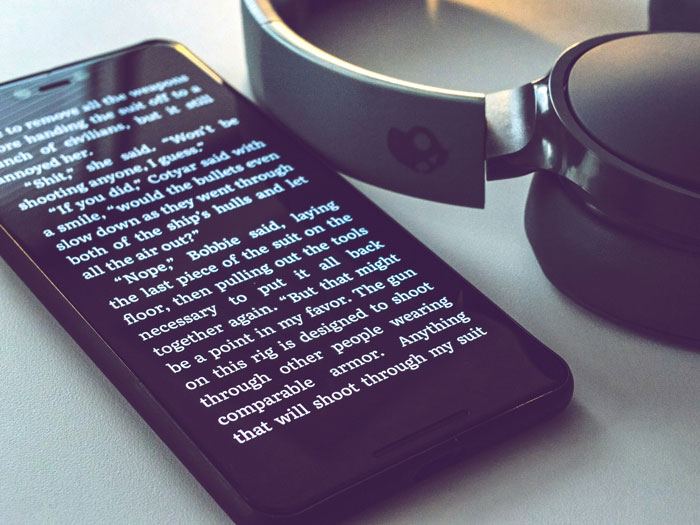 I save long articles as audio using text-to-speech tools and listen while commuting. Turns info overload into a podcast vibe.
I'm more likely to do the exact opposite - if someone posts a youtube instruction video, for example, I'll look for the closed captions if they have them and simply download the text. Much easier to just scroll down to the bit you want rather than continually going back, play, pause, back, play pause...
I use Pinterest boards like ADHD-friendly bookmarks. Recipes, outfits, dream life inspo, way less stressful than 50 open tabs and I actually remember what I saved.
I set my home router up so that only packets with DSCP markings can go through, and then I can selectively control in Windows which applications actually have internet access with QOS (DSCP marking)
Second layer firewall, because who fully trusts any OS (Looking at you, Windows) to adhere to the firewall ruleset that you've created.
I bet with full confidence that no-one does this.
Very handy when installing a new system with Windows as well which is hooked on a LAN, as it is not able to phone home until I set up my post-install scripts to realise internet access in the first place. And poor mans pull cable whilst installing is also a thing of the past.
It makes life easier by not being worried about unsolicited connections.

Just used the Ctrl+Shift+K to do this, but www.archive.org There is an abundance of media of all types here that can help when you can't find something you want to watch, or just want to go to yesteryear. Currently using it to watch one of my shows that I couldn't find on any streaming service or shop.
Do we all know about Snipping Tool at this point? One of the only things I miss about Windows. Can't remember if it's Ctrl+Shift+S or Win+Shift+S, but it's one of the two. Best screen grabber ever.

My laptop even has a dedicated button to screenshots
Load More Replies...
Just used the Ctrl+Shift+K to do this, but www.archive.org There is an abundance of media of all types here that can help when you can't find something you want to watch, or just want to go to yesteryear. Currently using it to watch one of my shows that I couldn't find on any streaming service or shop.
Do we all know about Snipping Tool at this point? One of the only things I miss about Windows. Can't remember if it's Ctrl+Shift+S or Win+Shift+S, but it's one of the two. Best screen grabber ever.
My laptop even has a dedicated button to screenshots
Load More Replies... 






























 No fees, cancel anytime