Get Premium
Dark mode theme is available exclusively for premium users. Learn more about the benefits of subscribing.
No fees, cancel anytime.

 Dark Mode Ad-Free Browsing Unlimited Content
 Ad-Free Browsing Unlimited Content Dark Mode
Join 1.2 million Panda readers who get the best art, memes, and fun stories every week!
Have you ever noticed how much time it takes to switch tabs, take a screenshot, rename files and close all open applications? All of these tasks could easily be considered labor since it takes so much effort to perform them.
But what if all of it can be done in a second? What if all you need is some simple shortcuts to make your day a thousand times easier?
Here, in this list compiled by Bored Panda, you’ll find at least a couple of shortcuts that you’ll be able to use on a daily basis!
This post may include affiliate links.
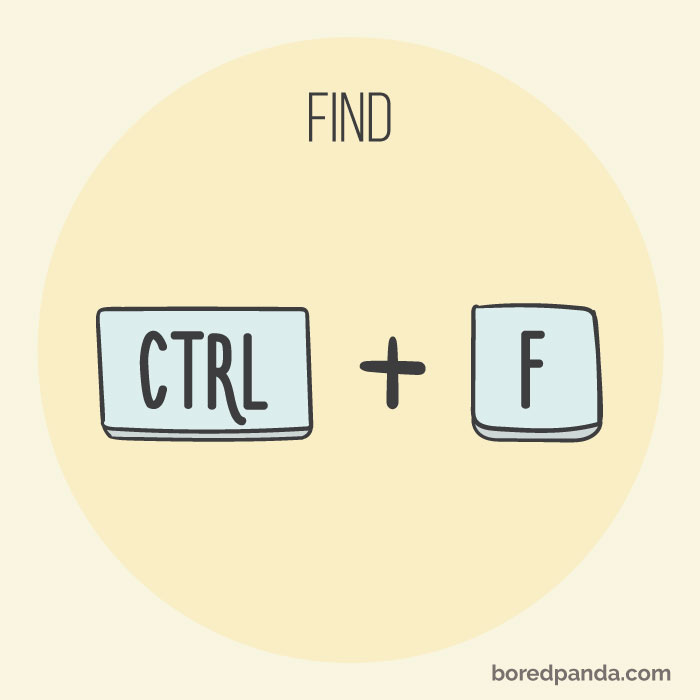
There is nothing more helpful than pressing ctrl+f and typing the keyword you are looking for. This way you will save so much time from scrolling through the entire text and finding exactly what you need. Mac: command+f
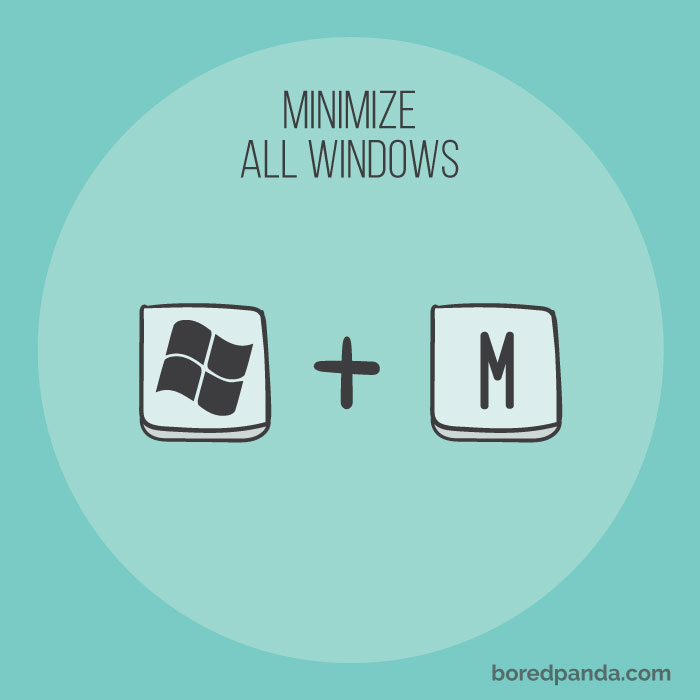
Want to access your desktop in a heartbeat? Click the combination windows+m. Wish to return? Press Windows+Shift+M. Mac: option+command+m
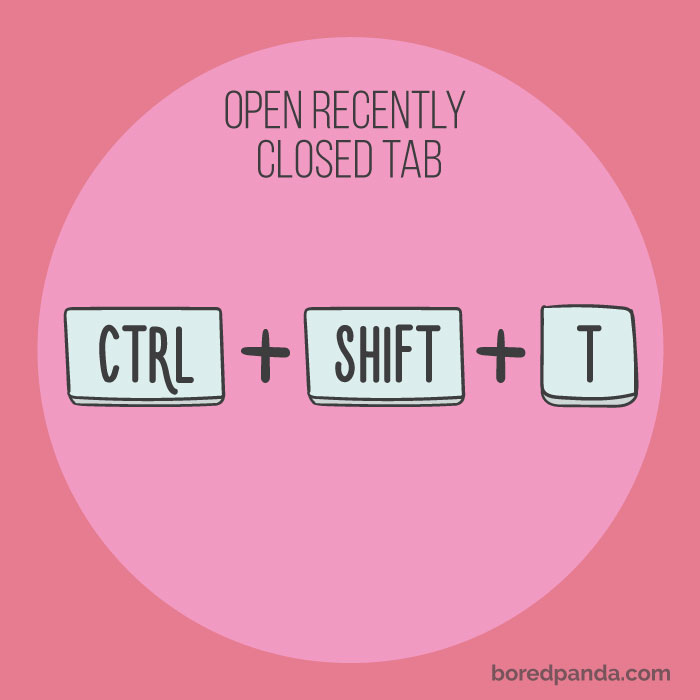
This happens even to the best of us. You’re in a hurry and you accidentally close a very important tab. Want to undo your mistake? Ctrl+Shift+T will do the trick! Mac: command+shift+t
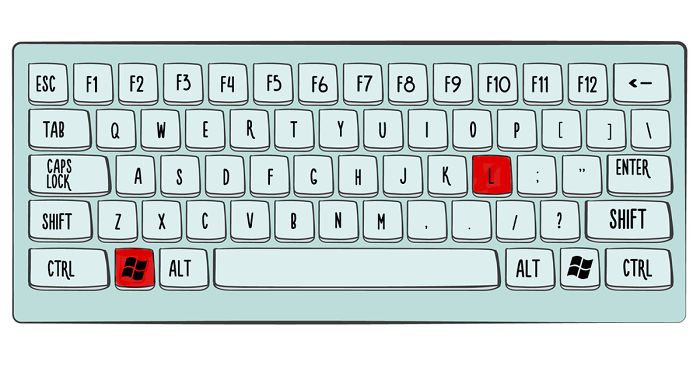
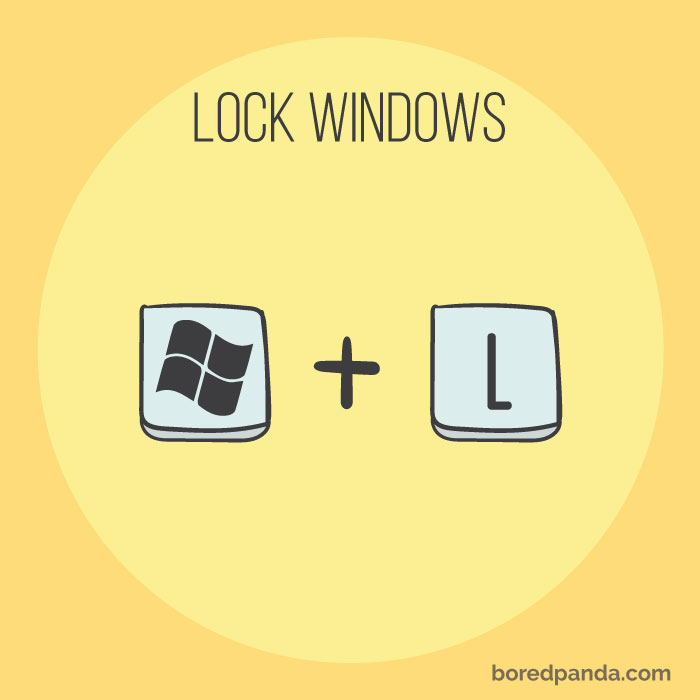
Catching a quick break? Not really in the mood for your coworkers to see what’s on your screen? You can quickly turn on the lock screen by pressing windows+L.
Mac: control + shift + power
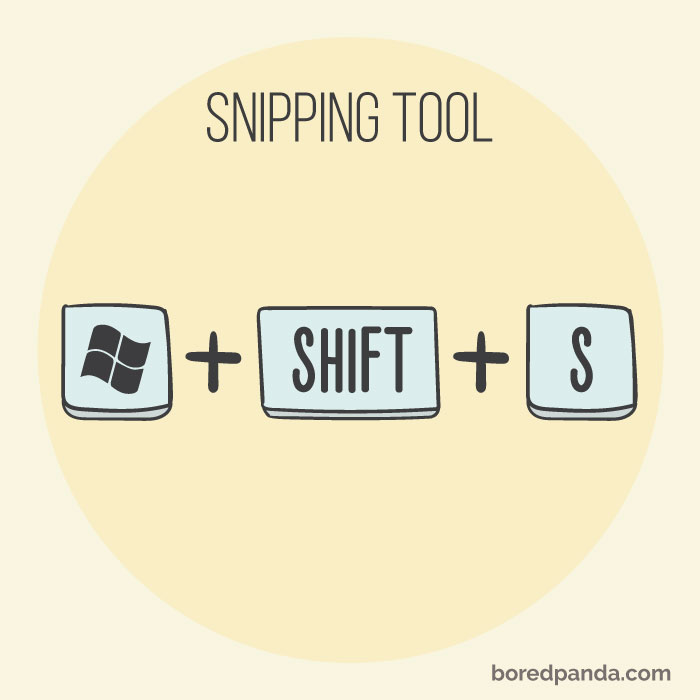
This one is particularly useful to capture some type of detail on your screen instead of capturing the entire screen and cropping it. Mac: command + shift + 4, then + space key. Move and drag the crosshair around the area you wish to capture.
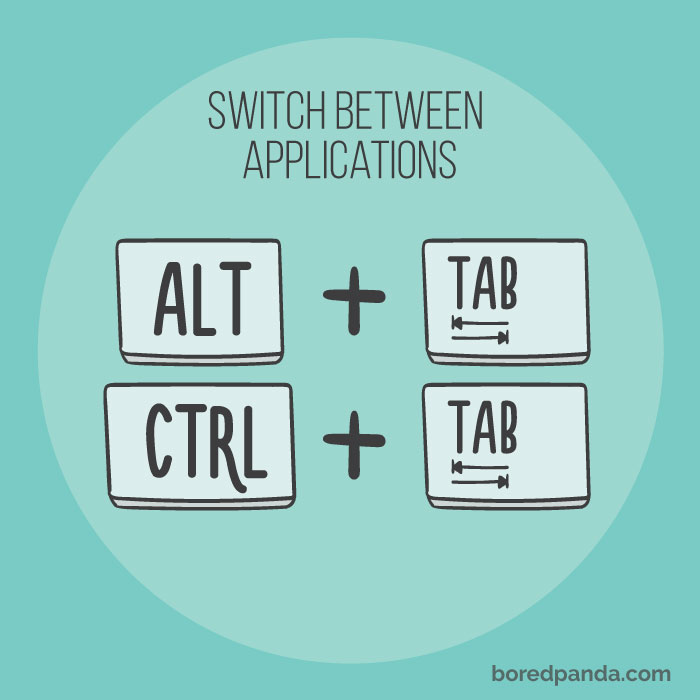
If you’re constantly on your computer there is no doubt that this shortcut is one of your favorites, since it allows you to quickly switch between various tabs. Ctrl+Tab mac: command+tab
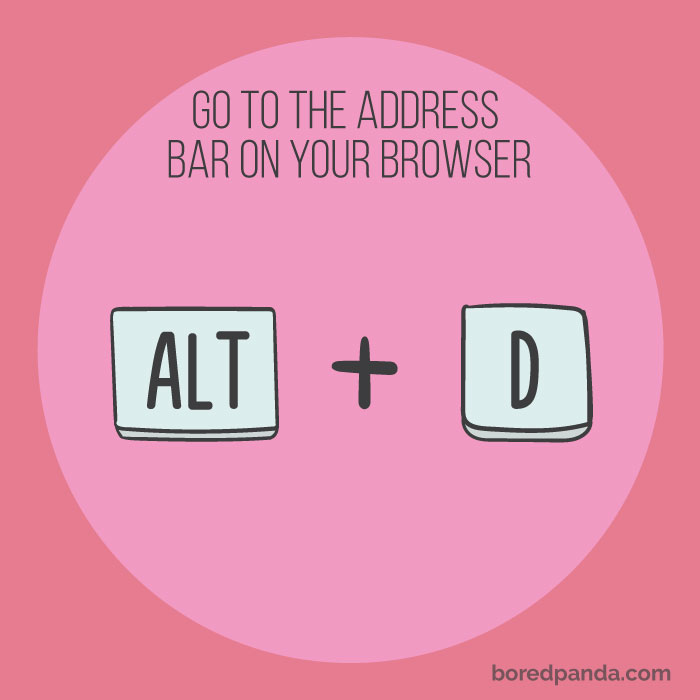
Since all of us are reaching the maximum amount of laziness, why not go to the address bar on your browser without using even your mouse?
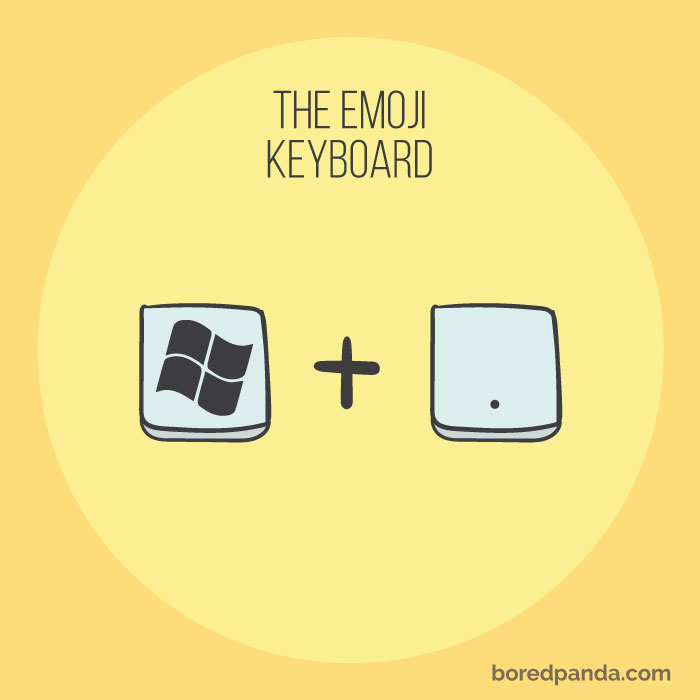
Really want to add an emoji to your text? Windows+comma combination will do the trick! Mac: Click on the text you where you’d like to add an emoji, then press command + control + spacebar.
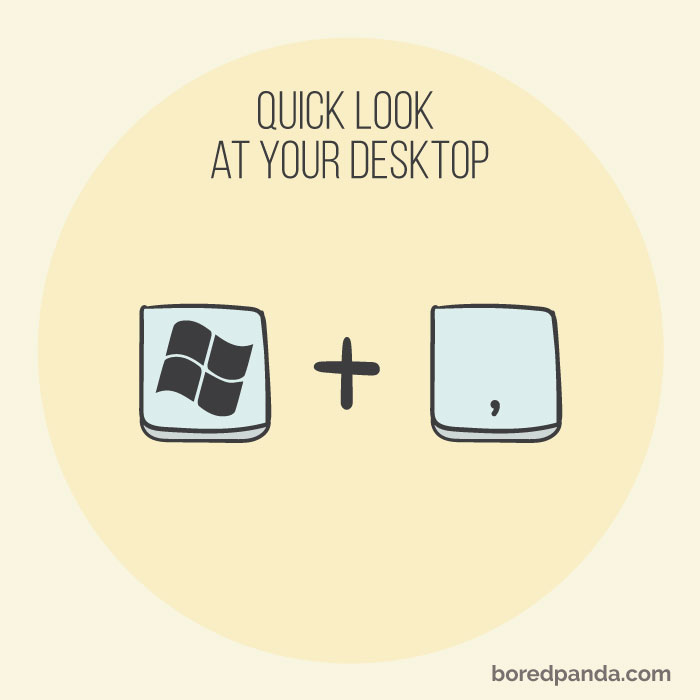
Need to quickly check your desktop without minimizing and closing any applications? Use this shortcut to catch a glimpse on what’s behind the layer of tabs!
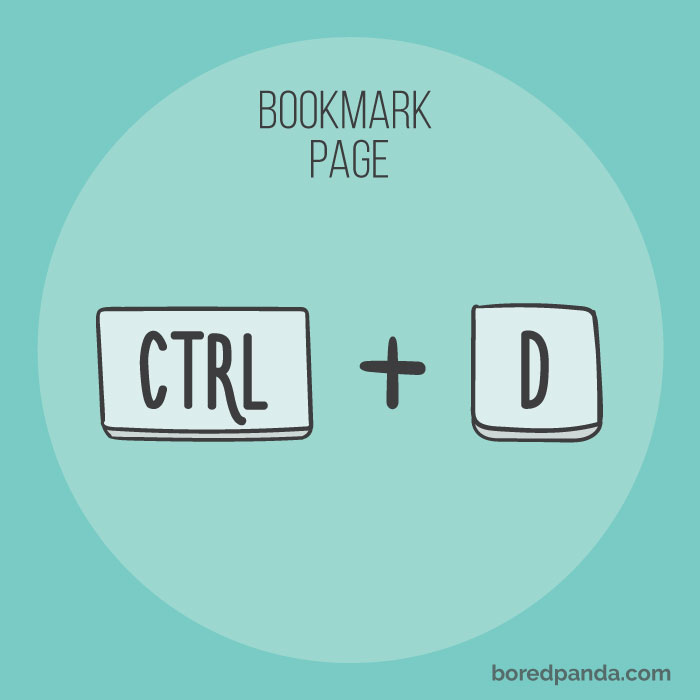
Like what you’re seeing in your browser? Wish to quickly bookmark the page? Ctrl+D combination will do the trick!
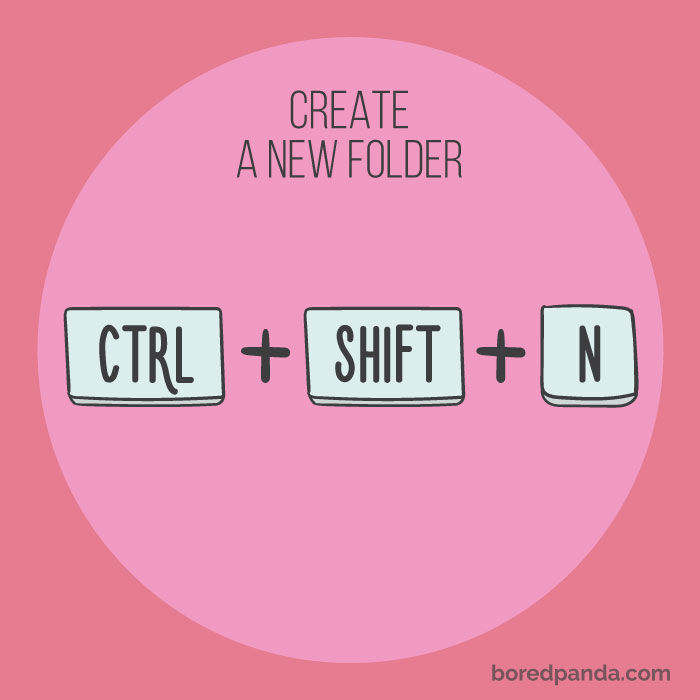
This one is a very useful shortcut for those who want to keep everything on their computer in the right folder, knowing this combination will help you to organize your files in a second. Mac: shift + command + n. This command opens a new folder in the Finder.
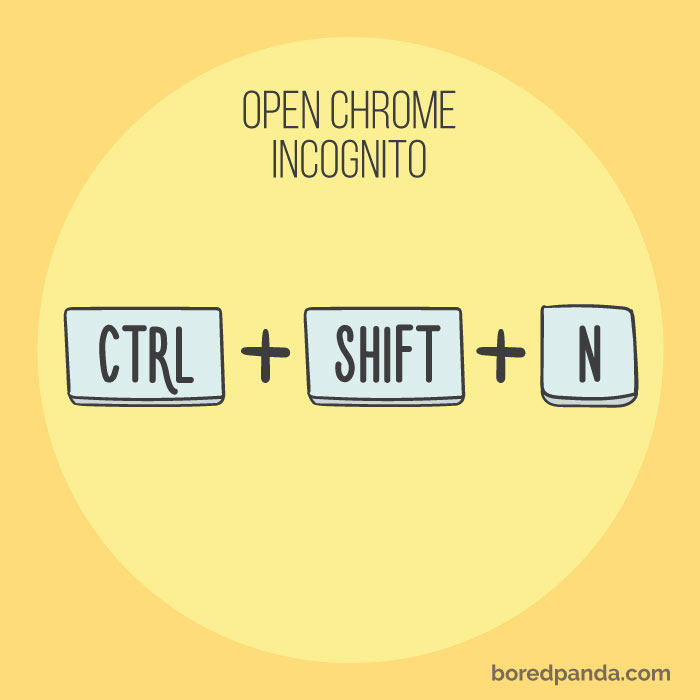
Want to check something you want nobody to see in your browsing history? Quickly jump to the incognito mode by pressing this combination. Mac: command+shift+n
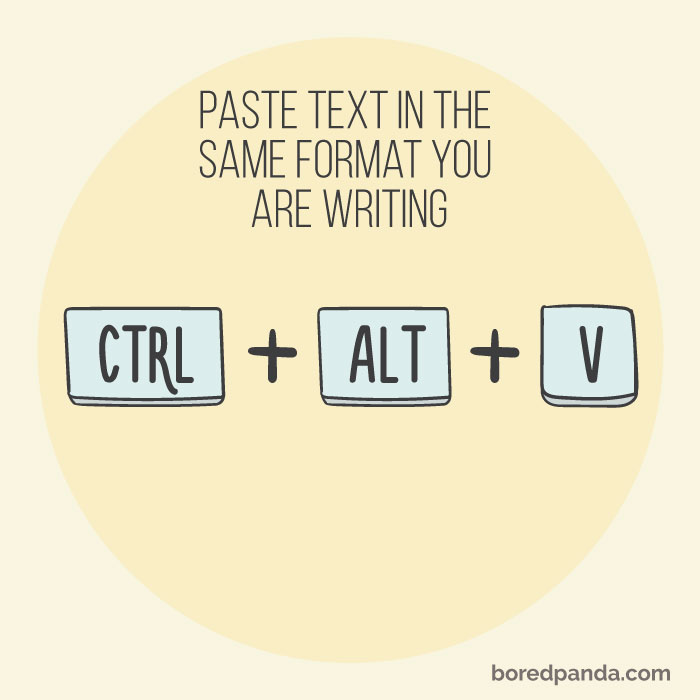
Want to add a quotation to your text but pasting it always messes up your text format? Worry no more, just add the alt while pressing ctrl+v and the text will be copied in the same format you were writing before.
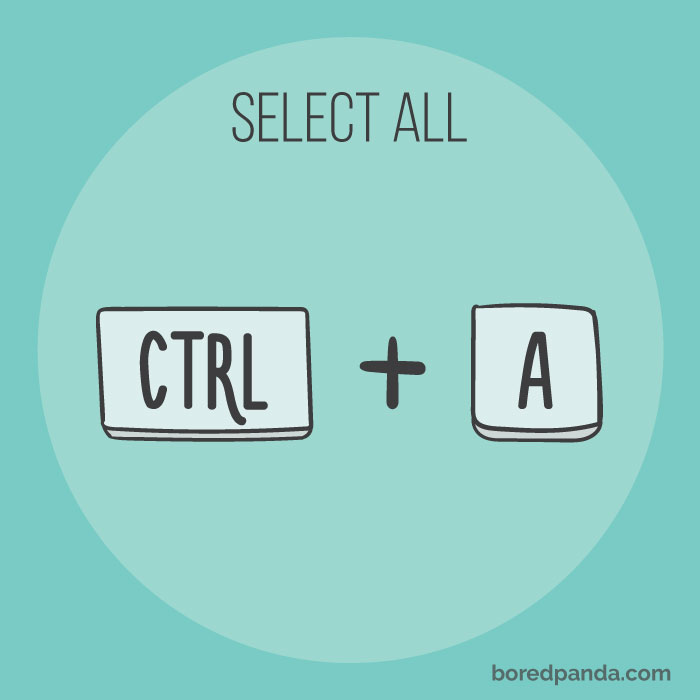
Wish to quickly change your text? Click Ctrl+A to select everything you have written before, now you can delete all of it at once, or you can use other combinations like ctrl+b to quickly bold the entire text, mac: command+a
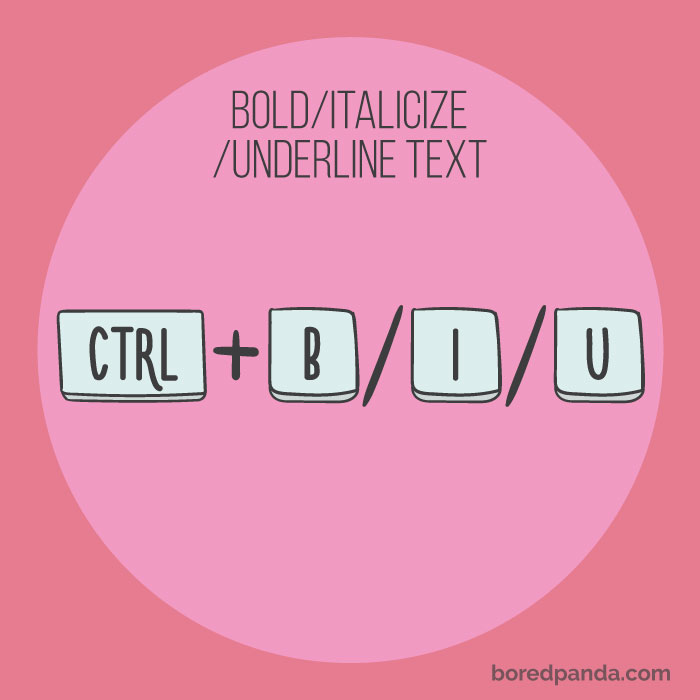
Bold, italicize and underline any text you need with this shortcut. Mac: command + B/I/U
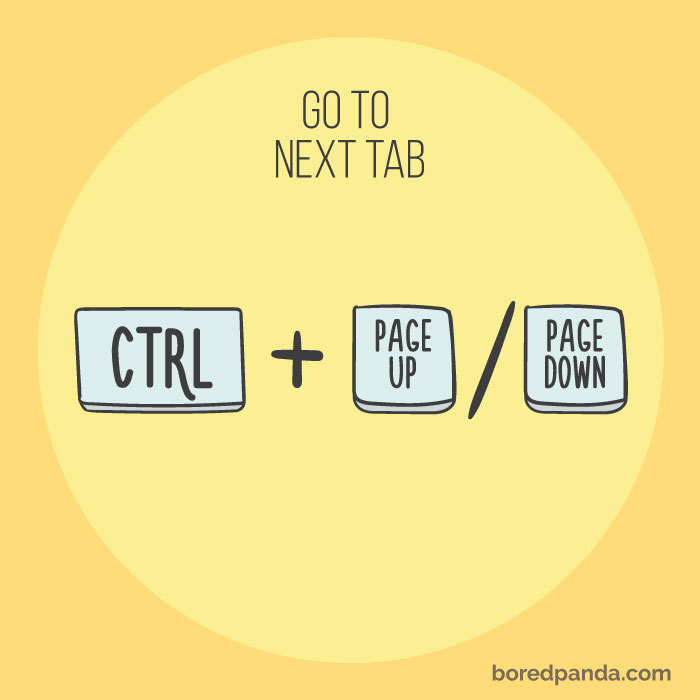
If you wish to quickly move between multiple tabs just use the combination of ctrl+page up/down. Mac: shift+command+]
Have more than one link open? Don’t waste your time by clicking each and every one, simply use this combination. Mac: command+press the link
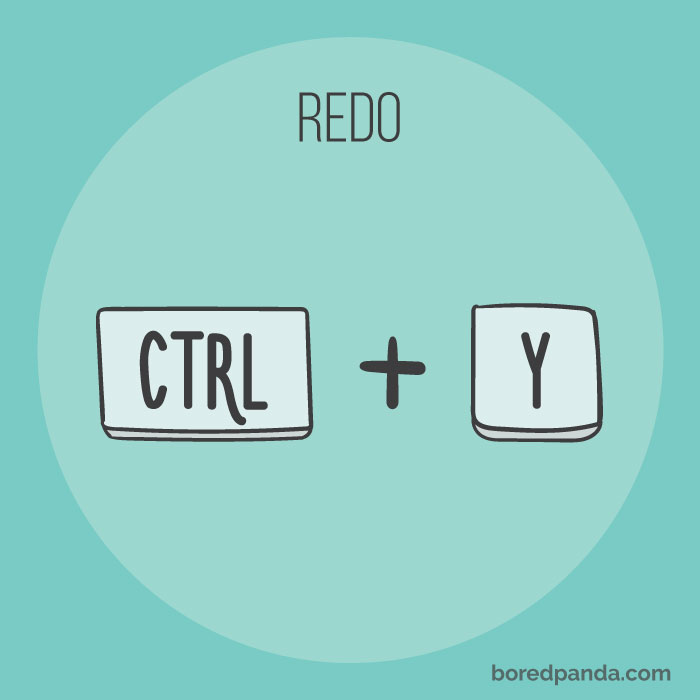
Many of us know the classic ctrl+z to quickly erase our mistakes, but have you heard of ctrl+y which lets you to redo your most recent action? Mac users: command + shift + z
Total game changer. If you want to rename any file on your computer click on the file and then press f2, it’s way quicker then clicking ‘rename’ manually. Mac: enter
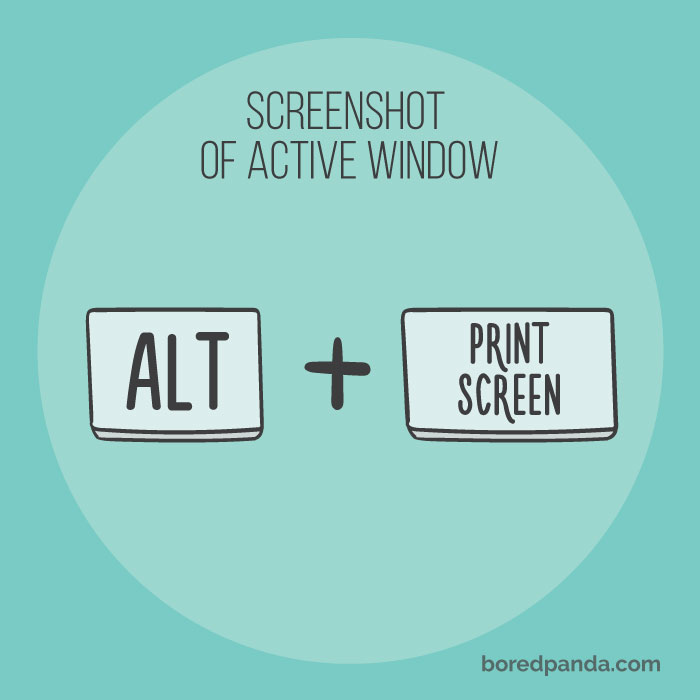
If you want to make a screenshot of just the window that is open, use alt+print screen instead of single print screen button since it captures the entire window. Mac: command + shift + 4, then + Space key. Then click on the window you’d like to capture.
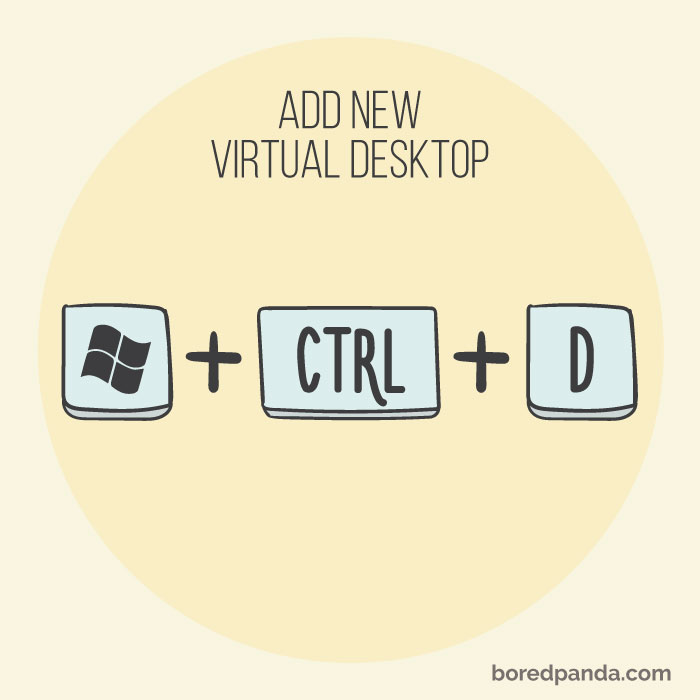
Having a couple of virtual desktops open allows you to have all types of programs opened without having your screen all cluttered. If you wish to move between your screen simply click windows + ctrl + left/right arrows.
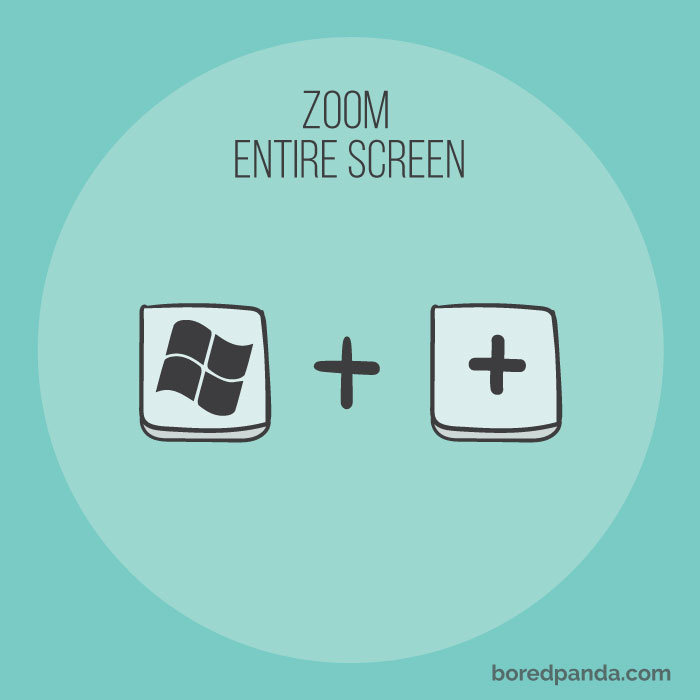
Not many know about this shortcut that lets you to quickly zoom the entire screen to 200% in one click.
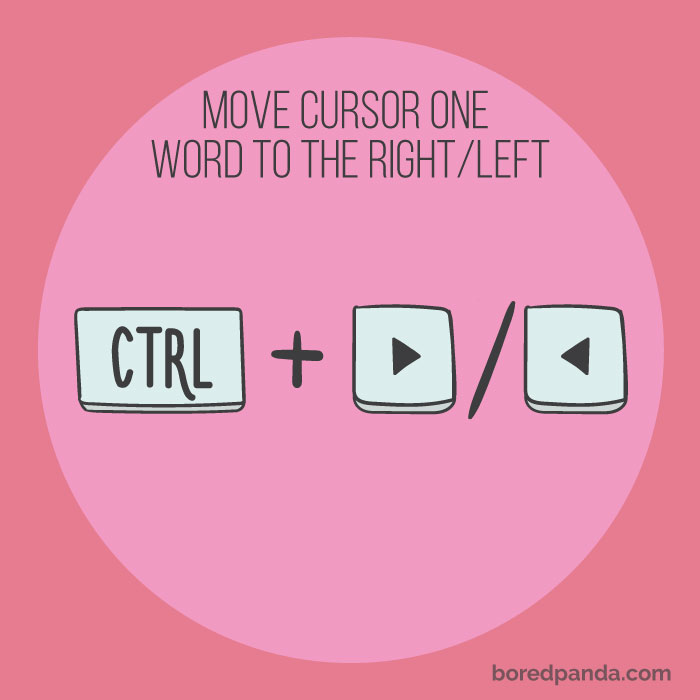
Wish you could quickly change, edit or delete the last word you’ve written? The Ctrl+Right/Left Arrow will do the trick! Ctrl+Right Arrow/Left Arrow
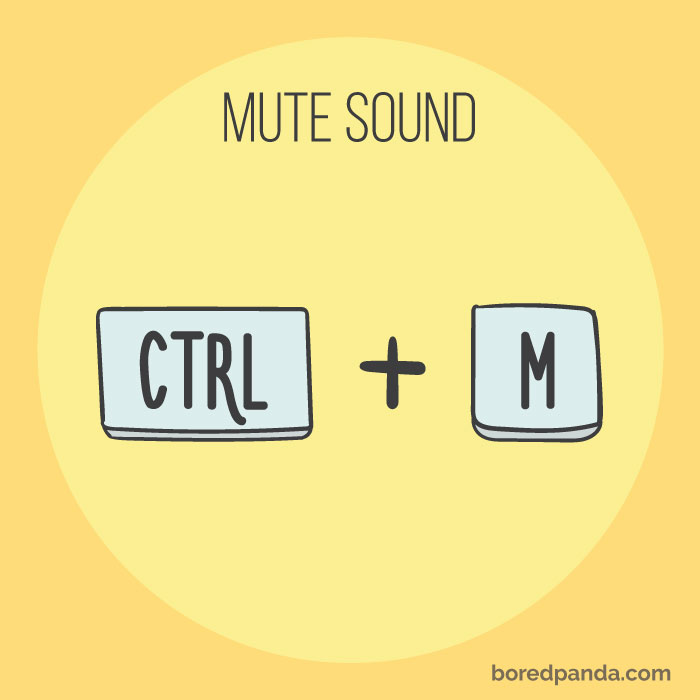
You’re watching something and the noises just sound a bit inappropriate? Just mute that part by clicking ctrl+m.
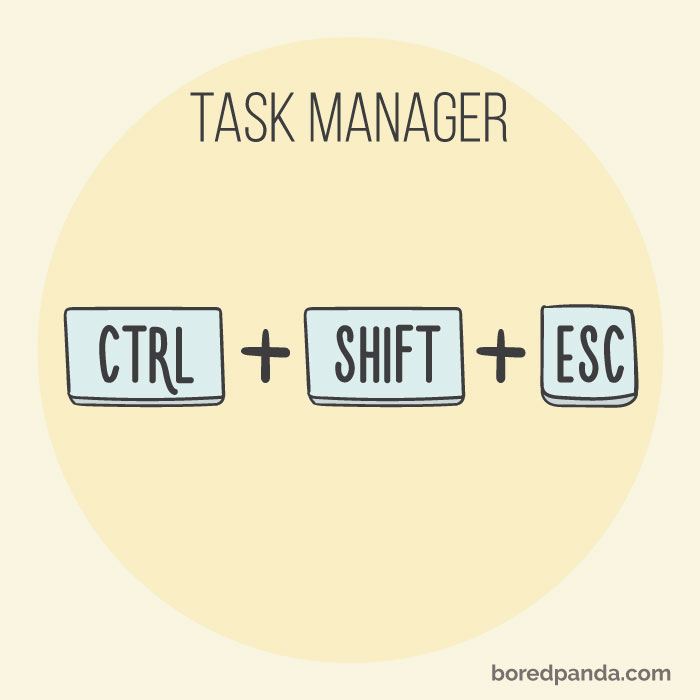
Open task manager easily by clicking this combination, now you can easily access any running program on your computer.
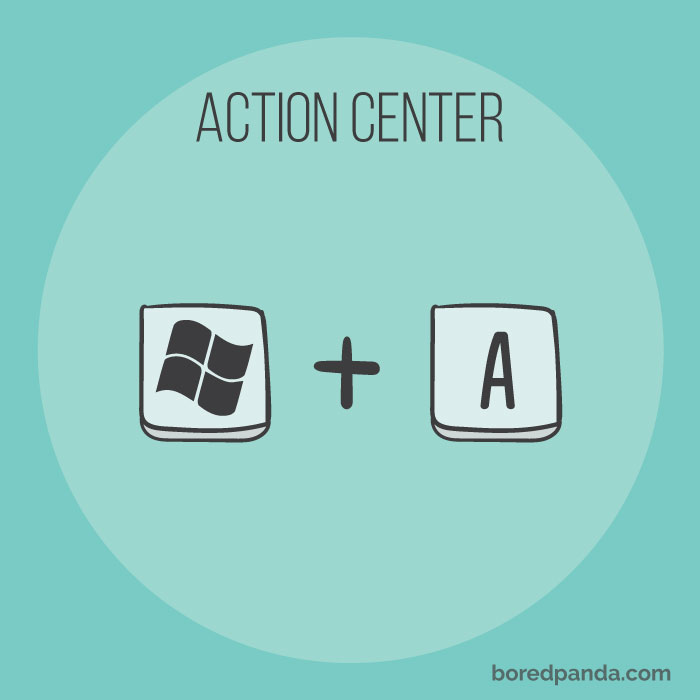
Who knew you can quickly enter windows action center? This shortcut allows you to access your notifications and various settings in a second.
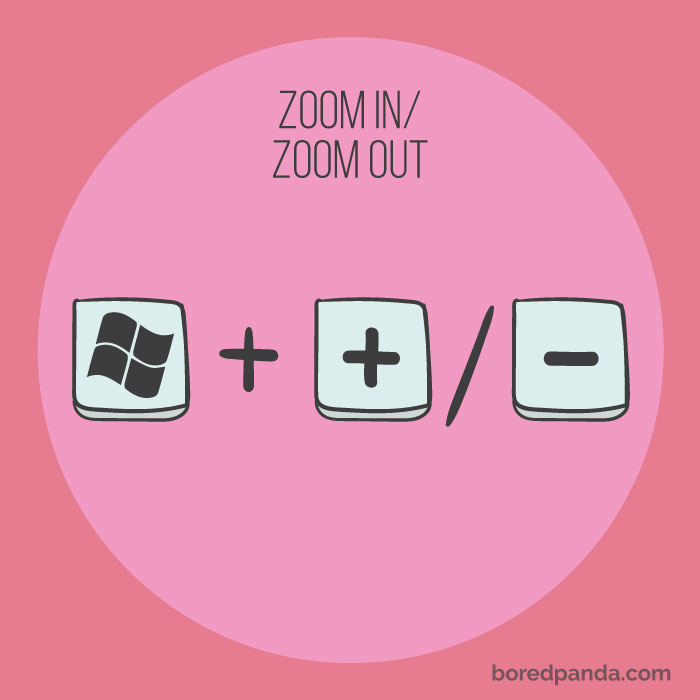
Windows+ +/- Somebody tagged you in a picture? Want to check your hair and makeup up close to see if everything is on point? Using this shortcut will save you some time! Mac: Command +/-


I don't know if some of these are disabled for me or are just trolling because several did nothing for me. Like my ex.

Same with me. Maybe it's simply different OS (Windows Vista vs. Windows 7 vs. Windows 10) or slightly different keyboard or ...
Load More Replies...

The mouse is great for a lot of things, but doesn't work for some. like the find command or bringing up emojis in BP comment boxes while browsing in Windows.
Load More Replies...
I don't know if some of these are disabled for me or are just trolling because several did nothing for me. Like my ex.
Same with me. Maybe it's simply different OS (Windows Vista vs. Windows 7 vs. Windows 10) or slightly different keyboard or ...
Load More Replies... The mouse is great for a lot of things, but doesn't work for some. like the find command or bringing up emojis in BP comment boxes while browsing in Windows.
Load More Replies... 


































 No fees, cancel anytime